
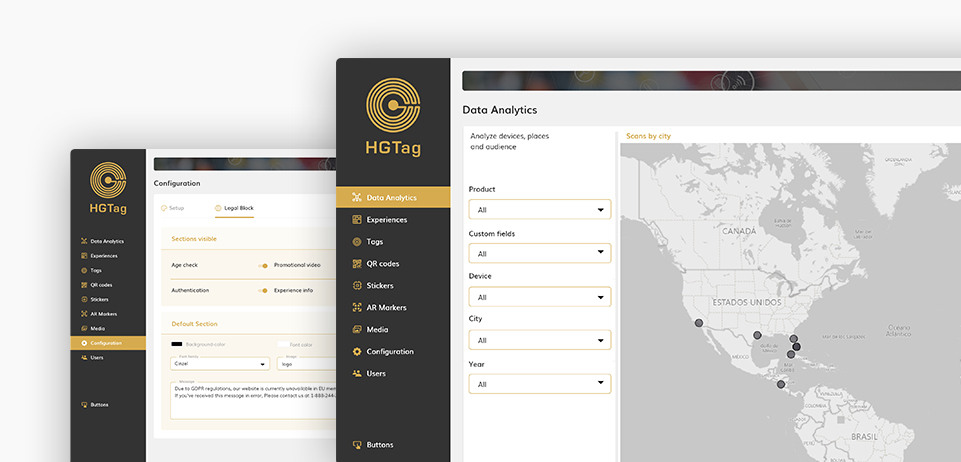
The Configuration section allows you to select images/logos for the home and side menu, view environment profile data, as well as configure the legal blocking of experiences according to the country.
Configuration
to customize the backoffice
and experiences.
Setup tab
From this tab you can view the installation data, as well as select the images/logos that appear in the application:
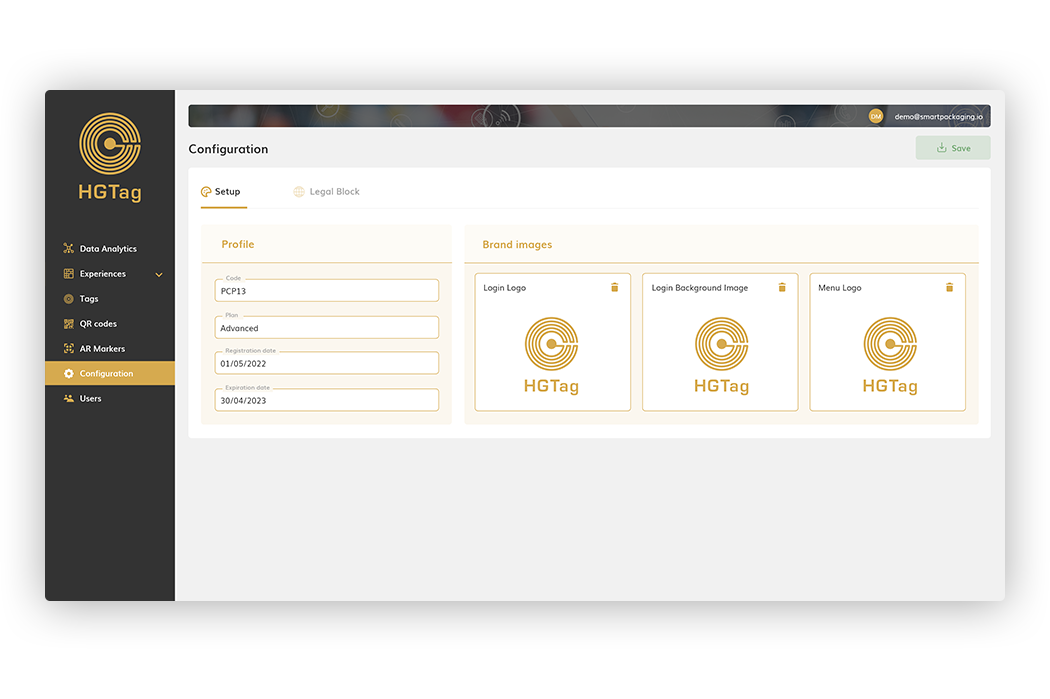
Profile Block in Setup :
- Client Code: Unique Code for your environment.
- Plan: Plan that has been selected for the environment
- Registration Date: Date the environment was registered.
- Expiration Date: Date of expiration. The date field will display in white, if there is no expiration date applied to the account or plan.
Brand Images Block:
- Login background: Background image for the login screen.
- Login logo: Logo to be displayed on the login screen.
- Menu logo: Logo to be displayed of the left side menú of the backoffice.
After selecting the image(s), remember to press the Save button. In case of not selecting an image, the default images of HGTAG will be displayed.
Legal Block tab
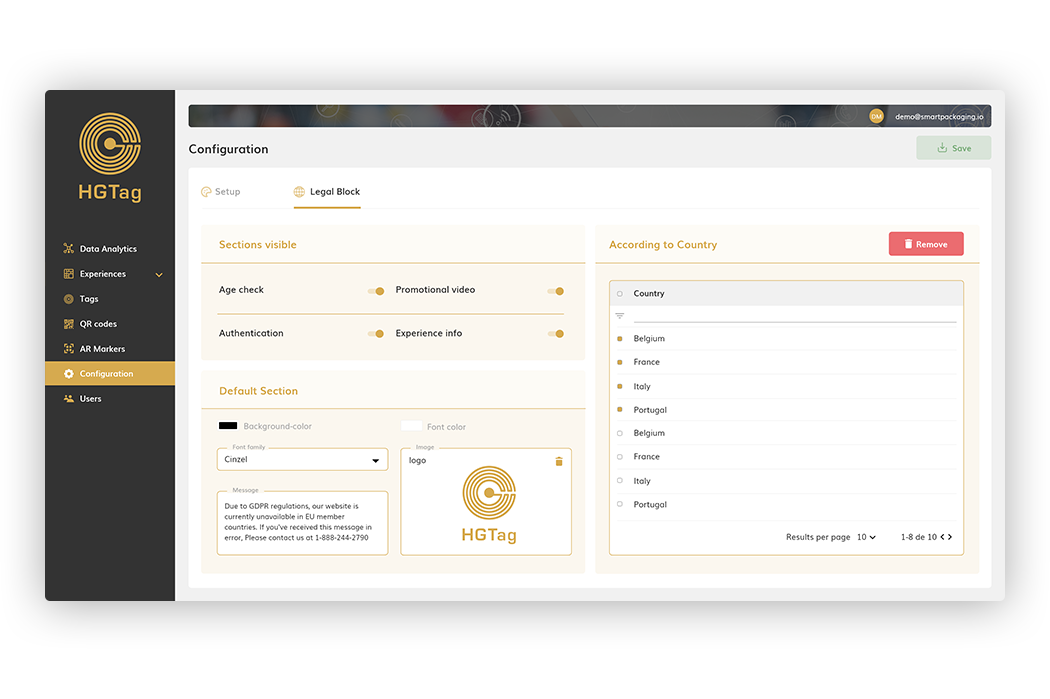
In the event that you want to block the experiences based on the geographical location of the consumer (due to legal issues in each of the countries), you must complete the data in the Legal Block tab.
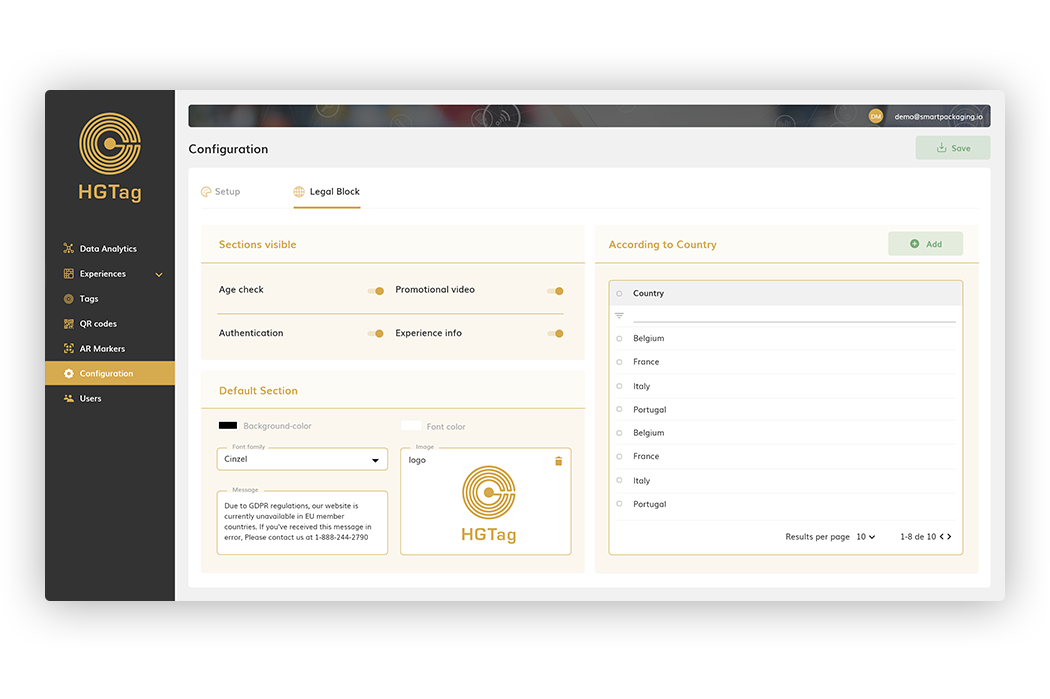
Below, the different blocks of the section are detailed:
1. Active sections: if you want to show a section of the experience even if there is a block (for example, if you want to verify the age even if there is a legal block). This setting is ‘by default’ in all experiences. Then, in each of the experiences, the visibility of these sections can be adjusted.
2. Default section: from here the page is configured to show when an experience is scanned and there is a block in that country. If a section of the ‘Active section’ block is activated, those blocks will be displayed first and, after them, this page will be displayed. From this block it allows us to configure: font and background color, type of letter, message to be displayed and an image (not mandatory).
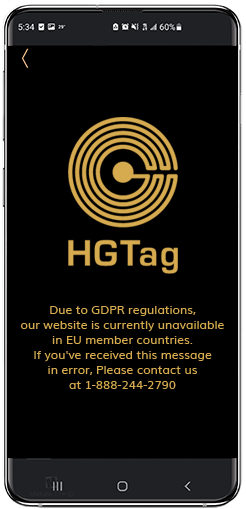
An example of how the screen looks when an experience is scanned in a country with a lock is the following depending on the settings of the screenshot:
According to country: here will be added to those countries that will have blocked the visibility of the experience.
With the Add button, all the necessary countries will be added. If you want to delete any country(s), you must select the desired ones with the check and press the Remove button.
How can we help?
If you have more questions you can access the different Tutorials available in this help, the Documentation or our FAQS.