
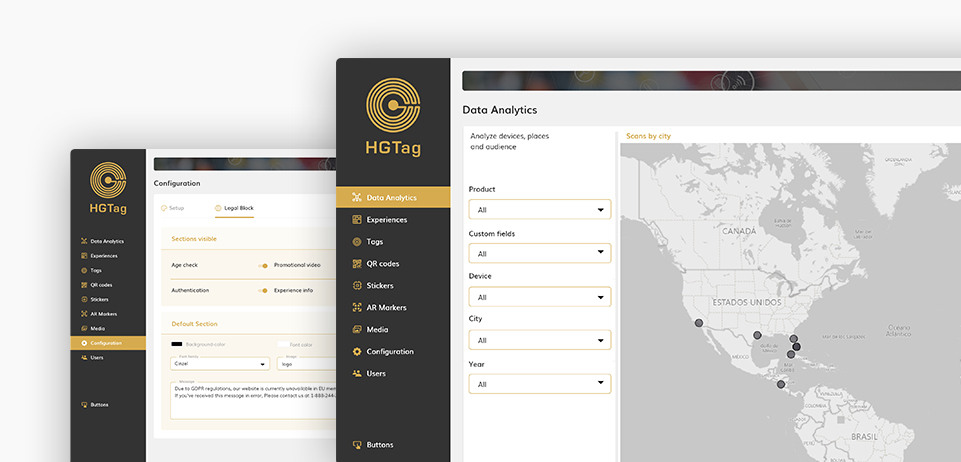
The QR Codes section allows you to manage the platform QR Codes: shows/edit the existing QR Codes, add and delete QR Codes.
QR Codes
to Manage the platform QR Codes:
shows, edit, add and delete.
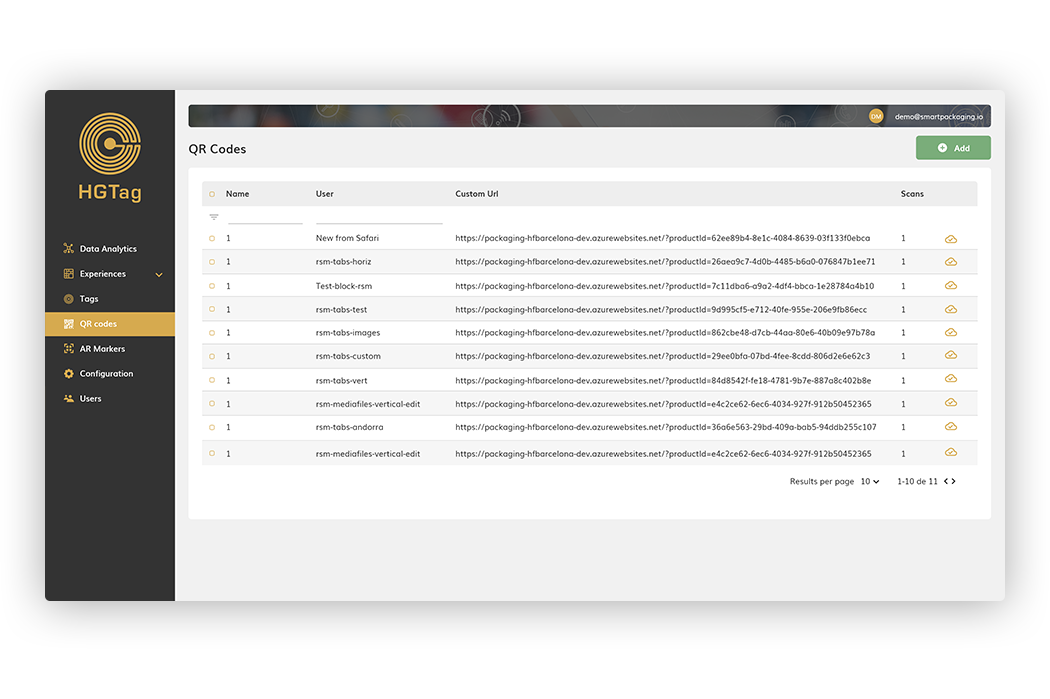
From the list, you can filter the data by name of the QR or name of the experience.
Name: name of the QR.
Experience: experience to which the QR is linked.
Custom URL: URL of the experience.
Scans: number of scans that the QR has had. Keep in mind that, if the linked experience does not have the Publish button active, the scans will not be counted.
Creating QR Codes
The following are the steps for creating a new QR:
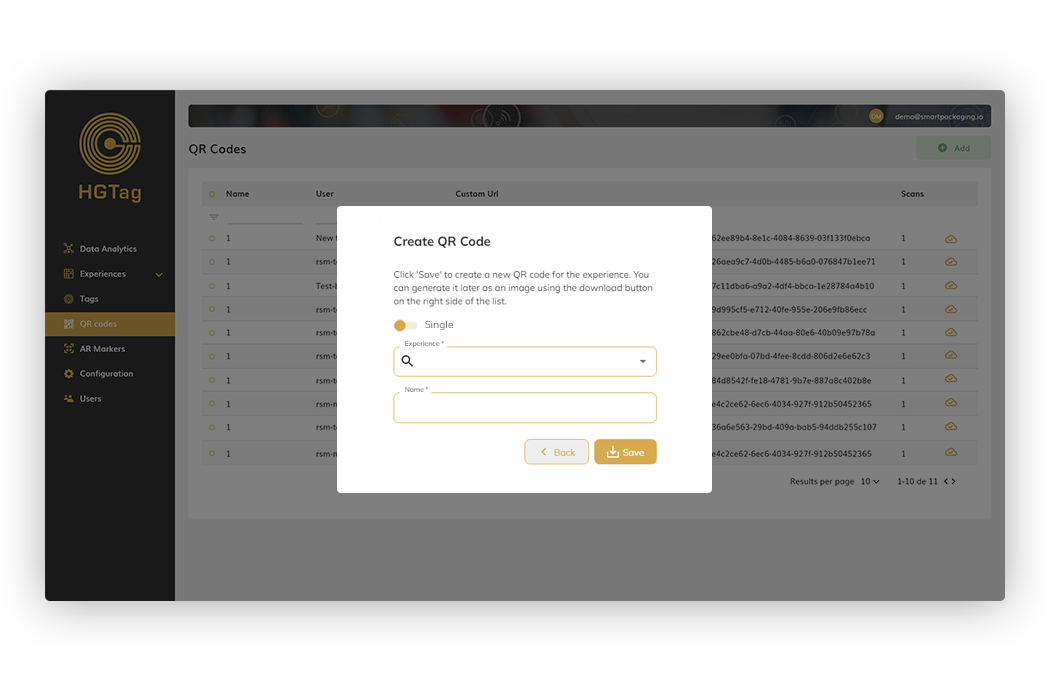
1. Click the Add button:
2. In the screen that opens we will indicate: if we want to create an individual or multi-language experience, on which experience we want to create it and the name (it must be unique within the same experience). After reporting the mandatory fields data, we will press Save and in this way we will have created the new QR.
Downloading a QR Code
To download a QR code, simply click on the Download icon at the end of each row of the list.
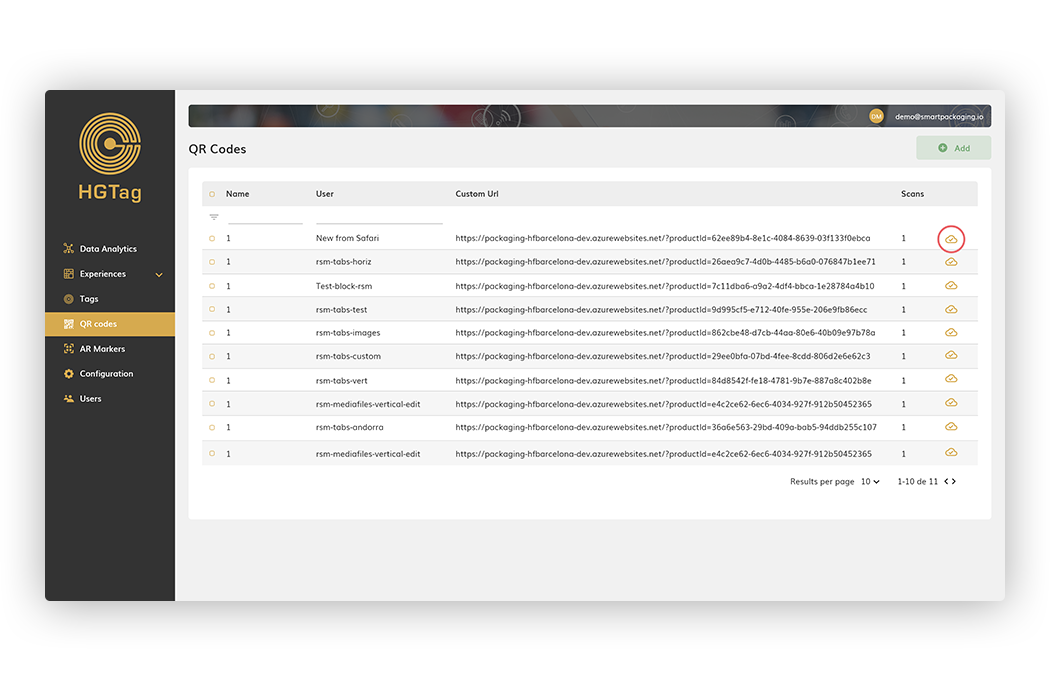
When pressed, we will be shown this screen:
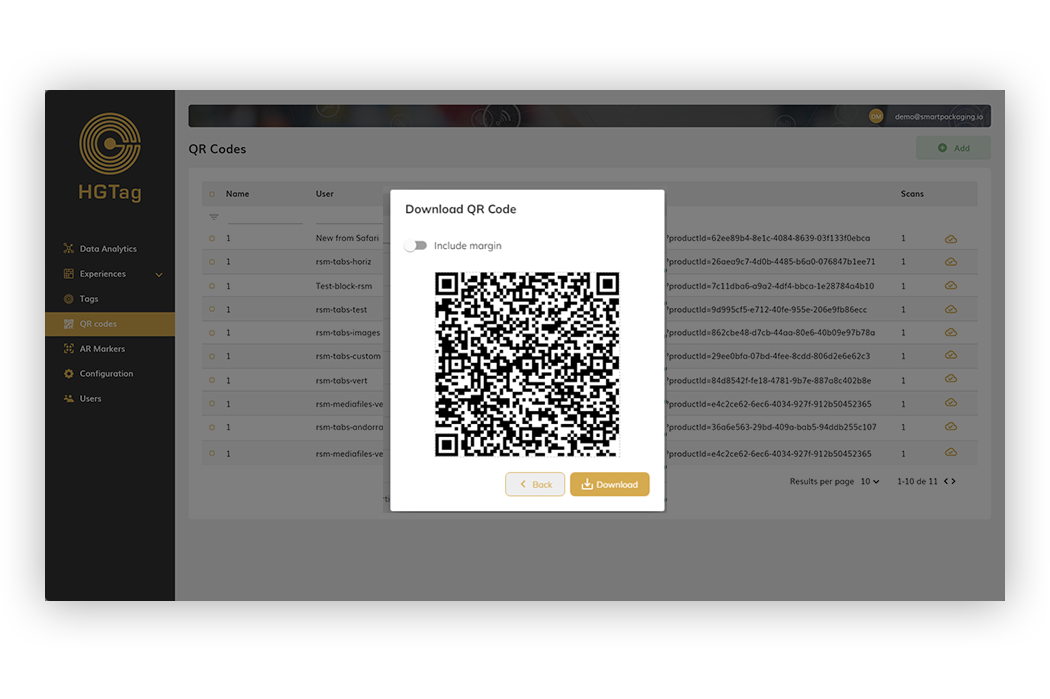
Where we can download the QR or scan it directly from this screen.
Deleting a QR Code
To delete one or more QR’s, select them with the check field and press the Remove button:
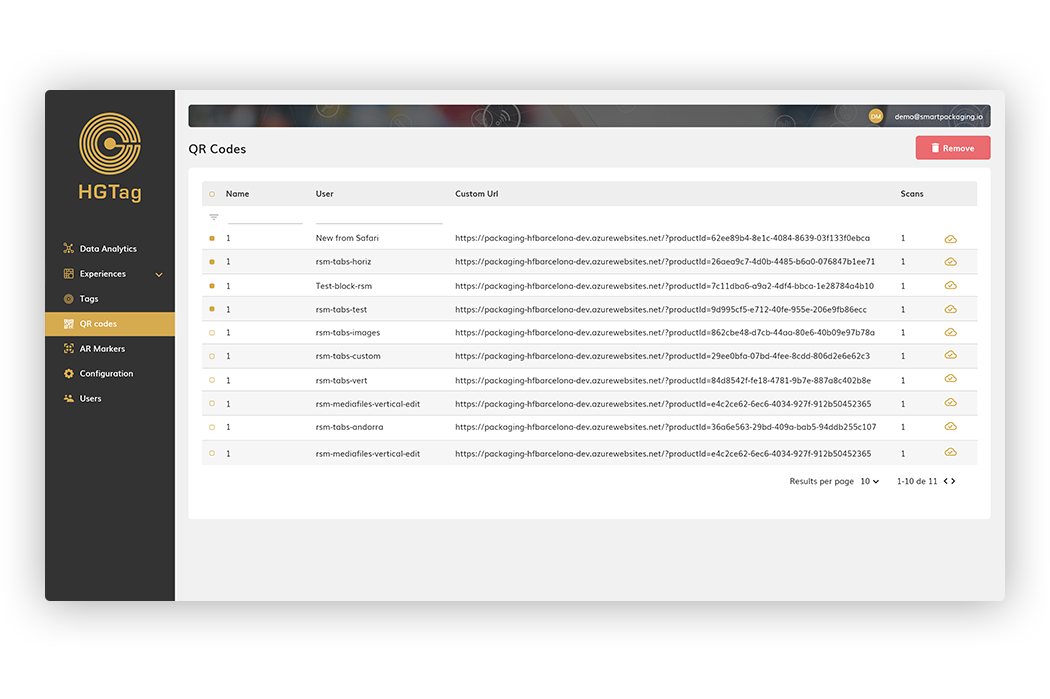
It is allowed to delete QR’s that have associated scans (after prior confirmation that you want to delete). Keep in mind that once the QR is removed, the associated analytics will be lost.
How can we help?
If you have more questions you can access the different Tutorials available in this help, the Documentation or our FAQS.